Check Payment
Overview
To enable Check Payment, contact your Highnote implementation team or support@highnote.com.
Subscribers can enable their systems to let account holders send payments by check. Checks are funded by a FinancialAccount. Checks greater than $2,000 USD must have a signature of the Primary Authorized Person linked to the FinancialAccount.
Attaching a signature to a FinancialAccount
Only checks greater than or equal to $2,000 require a signature.
Signatures must be uploaded as an image file (PNG, JPG, or BMP) and attached to a FinancialAccount. Highnote automatically converts uploads to PNG. High-level steps are:
- Create an upload session to attach the signature to a
FinancialAccount. - Upload the signature to Highnote with either the Document Upload SDK or the Highnote GraphQL API.
Create check payment upload session
To begin, create a check payment document upload session to associate a signature with a FinancialAccount.
CreateCheckPaymentDocumentUploadSession
Query
mutation CreateCheckPaymentDocumentUploadSession(
  $input: CreateCheckPaymentDocumentUploadSessionInput!
) {
  createCheckPaymentDocumentUploadSession(input: $input) {
    __typename
    ... on DocumentUploadSession {
      id
    }
  }
}
Variables
{
  "input": {
    "financialAccountId": "<FINANCIAL_ACCOUNT_ID>",
    "documentTypes": [
      "ACCOUNT_HOLDER_SIGNATURE"
    ]
  }
}
Result
{
  "data": {
    "createSignatureUploadSession": {
      "__typename": "CheckPaymentDocumentUploadSession",
      "id": "<CHECK_PAYMENT_DOCUMENT_UPLOAD_SESSION_ID>"
    }
  }
}
Upload signature to Highnote
Next, upload the signature to Hignote. Signatures can be uploaded to Highnote one of two ways:
- The Document Upload SDK lets users upload their own signature file.
- The Highnote GraphQL API can upload a signature if the file is already present.
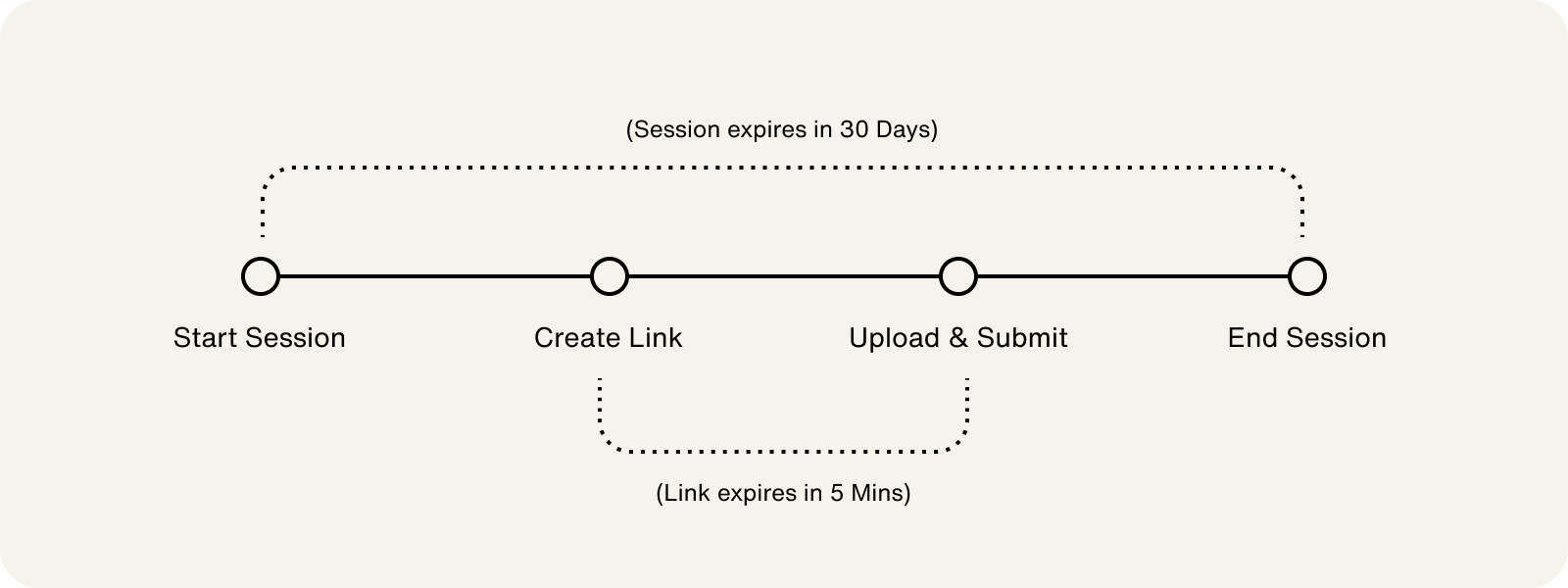
If you use the Highnote GraphQL API, the document upload process consists of the following steps:
- Optional - Generate a client token.
- Start a document upload session to Highnote
- Create a document upload link
- Upload the signature with the upload link.
- End the document upload session
Start document upload session
For compliance reasons, you must generate a client token to make requests directly from your client if you are not using a server or do not have access to one. See Client Tokens.
The Start mutation generates a session URL. Upload sessions expire 30 days from creation; and each session notifies you of any requirements your system needs to enforce to upload the file.
Use the following mutation to start a document upload session:
StartDocumentUploadSession
Query
mutation StartDocumentUploadSession($input: StartDocumentUploadSessionInput!) {
  startDocumentUploadSession(input: $input) {
    ... on Node {
      id
    }
    ... on CheckPaymentDocumentUploadSession {
      id
      status
    }
  }
}
Variables
{
  "input": {
    "documentUploadSessionId": "my-signature-upload-session"
  }
}
Result
{
  "data": {
    "startDocumentUploadSession": {
      "id": "start-document-upload-session-id",
      "status": "INITIATED"
    }
  }
}
Create document upload link
Document upload links expire 5 minutes after creation.
Each upload link created with this mutation represents a single upload file. If, for example, you are required to upload two signature files, you must create a unique link for each.
When creating upload links, the document upload session status transitions to PENDING. You can use the uploadURL field in the mutation's response to stream the document upload.
To create a document upload link, use the DOCUMENT_UPLOAD_SESSION_ID from the startDocumentUploadSession response for this mutation's variable field:
CreateDocumentUploadLink
Query
mutation CreateDocumentUploadLink($input: CreateDocumentUploadLinkInput!) {
  createDocumentUploadLink(input: $input) {
    ... on Node {
      id
    }
    ... on DocumentUploadLink {
      id
      uploadUrl
    }
  }
}
Variables
{
  "input": {
    "documentUploadSessionId": "my-signature-upload-session",
    "documentType": "ACCOUNT_HOLDER_SIGNATURE"
  }
}
Result
{
  "data": {
    "createDocumentUploadLink": {
      "id": "signature-upload-link-id",
      "uploadUrl": "https://storage.googleapis.upload-to-bucket"
    }
  }
}
End the document upload session
After the signature has been uploaded, you can end the document upload session. When ending a session, the session status transitions to SUBMITTED and no other actions can be taken. If more documentation is required, a new session must be started to upload the additional documents.
Use the following mutation to end a document upload session:
EndDocumentUploadSession
Query
mutation EndDocumentUploadSession($input: EndDocumentUploadSessionInput!) {
  endDocumentUploadSession(input: $input) {
    ... on DocumentUploadSession {
      status
    }
  }
}
Variables
{
  "input": {
    "documentUploadSessionId": "my-signature-upload-session"
  }
}
Result
{
  "data": {
    "endDocumentUploadSession": {
      "status": "SUBMITTED"
    }
  }
}
Initiate a physical check payment
Refer to the check image below to see how physical check items map to API fields.
To begin a check payment, call the initiatePhysicalCheckPayment mutation using a sufficiently funded FinancialAccount and a recipient's name and an address (ideally, a validatedAddressTokenId).
Address Validation
Before initiating a check payment, Highnote recommends that you utilize the Address Validation service (below) to ensure the recipient's address is correctly formatted and verified.
Steps are:
- Call
validateAddressto check if the check payment address is valid. - From the response, copy
validatedAddressTokenIdrepresenting the validated address. - Call
InitiatePhysicalCheckPaymentwith the response token Id.
Shipping Method
You can specify the type of check and the shipping method when initiating a check payment. The check funding process takes 2-3 business days to complete, in addition to the stated mailing times.
The following shipping methods are supported:
| Method | Timing | Carrier |
|---|---|---|
STANDARD | 2-5 business days | USPS |
CERTIFIED | 2-5 business days | USPS |
EXPEDITED | 2 days | FEDEX or UPS |
OVERNIGHT | Next day | FEDEX or UPS |
Validate check payment address
You can validate the check payment address using the validateAddress mutation. This mutation validates addresses using a CASS-certified service to ensure it is properly formatted to reduce possible shipping delays or returns.
The Highnote API returns an AddressValidationResult response with a validated address token, or an error message explaining why the address is invalid.
ValidateAddress
Query
mutation validateAddress($input: ValidateAddressInput!) {
  validateAddress(input: $input) {
    __typename
    ... on AddressValidationResult {
      outcome {
        __typename
        ... on AddressValidatedWithChangesResult {
          token {
            id
          }
        }
        ... on AddressValidatedResult {
          token {
            id
          }
        }
      }
    }
  }
}
Variables
{
  "input": {
    "idempotencyKey": "idempotency-key",
    "address": {
      "streetAddress": "24 WILLIE MAYS PLZ",
      "extendedAddress": "",
      "postalCode": "94107-2134",
      "region": "CA",
      "locality": "SAN FRANCISCO",
      "countryCodeAlpha3": "USA"
    }
  }
}
Result
{
  "data": {
    "validateAddress": {
      "__typename": "AddressValidationResult",
      "outcome": {
        "__typename": "AddressValidatedResult",
        "token": {
          "id": "tkvad_1"
        }
      }
    }
  }
}
Initiate physical check payment with validated address token
Use the following mutation to initiate a check payment with a validatedAddressTokenId:
InitiatePhysicalCheckPayment
Query
mutation InitiatePhysicalCheckPayment(
  $input: InitiatePhysicalCheckPaymentInput!
) {
  initiatePhysicalCheckPayment(input: $input) {
    __typename
    ... on CheckPayment {
      id
      amount {
        __typename
        value
        currencyCode
        decimalPlaces
      }
      recipient {
        __typename
        name
        address {
          __typename
          streetAddress
          extendedAddress
          postalCode
          region
          locality
          countryCodeAlpha3
        }
      }
      checkType
      shippingTime
      status
      events {
        __typename
        id
        type
      }
    }
  }
}
Variables
{
  "input": {
    "financialAccountId": "ac_1",
    "amount": {
      "value": 100,
      "currencyCode": "USD"
    },
    "recipient": {
      "name": "John Doe",
      "validatedAddressTokenId": "tkvad_1"
    },
    "shippingTime": "STANDARD"
  }
}
Result
{
  "data": {
    "initiatePhysicalCheckPayment": {
      "__typename": "CheckPayment",
      "id": "eftck_1",
      "amount": {
        "__typename": "Amount",
        "value": 100,
        "currencyCode": "USD",
        "decimalPlaces": 2
      },
      "recipient": {
        "__typename": "CheckPaymentRecipient",
        "name": "John Doe",
        "address": {
          "__typename": "Address",
          "streetAddress": "123 Main St",
          "extendedAddress": "Apt 1",
          "postalCode": "12345",
          "region": "CA",
          "locality": "San Francisco",
          "countryCodeAlpha3": "USA"
        }
      },
      "checkType": "PHYSICAL",
      "shippingTime": "STANDARD",
      "status": "PENDING",
      "events": [
        {
          "__typename": "CheckPaymentEvent",
          "id": "eftct_1",
          "type": "FUNDING_PENDING"
        }
      ]
    }
  }
}
Initiate physical check payment with unvalidated address
While not recommended, you can use the following mutation to initiate a check payment with an unvalidated address.
To use a validated address instead, see Initiate physical check payment with validated address token (above).
InitiatePhysicalCheckPayment
Query
mutation InitiatePhysicalCheckPayment(
  $input: InitiatePhysicalCheckPaymentInput!
) {
  initiatePhysicalCheckPayment(input: $input) {
    __typename
    ... on CheckPayment {
      id
      amount {
        __typename
        value
        currencyCode
        decimalPlaces
      }
      recipient {
        __typename
        name
        address {
          __typename
          streetAddress
          extendedAddress
          postalCode
          region
          locality
          countryCodeAlpha3
        }
      }
      checkType
      shippingTime
      status
      events {
        __typename
        id
        type
      }
    }
  }
}
Variables
{
  "input": {
    "financialAccountId": "ac_1",
    "amount": {
      "value": 100,
      "currencyCode": "USD"
    },
    "recipient": {
      "name": "John Doe",
      "address": {
        "streetAddress": "123 Main St",
        "extendedAddress": "Apt 1",
        "postalCode": "12345",
        "region": "CA",
        "locality": "San Francisco",
        "countryCodeAlpha3": "USA"
      }
    },
    "shippingTime": "STANDARD"
  }
}
Result
{
  "data": {
    "initiatePhysicalCheckPayment": {
      "__typename": "CheckPayment",
      "id": "eftck_1",
      "amount": {
        "__typename": "Amount",
        "value": 100,
        "currencyCode": "USD",
        "decimalPlaces": 2
      },
      "recipient": {
        "__typename": "CheckPaymentRecipient",
        "name": "John Doe",
        "address": {
          "__typename": "Address",
          "streetAddress": "123 Main St",
          "extendedAddress": "Apt 1",
          "postalCode": "12345",
          "region": "CA",
          "locality": "San Francisco",
          "countryCodeAlpha3": "USA"
        }
      },
      "checkType": "PHYSICAL",
      "shippingTime": "STANDARD",
      "status": "PENDING",
      "events": [
        {
          "__typename": "CheckPaymentEvent",
          "id": "eftct_1",
          "type": "FUNDING_PENDING"
        }
      ]
    }
  }
}
Check payment event types
Payments made by check follow an event lifecycle with the possible types outlined below. Your platform receives a notification event as each check payment transitions to a new type.
The Highnote transaction event and notification event for all check payment types is the CheckPaymentEvent.
For typical "happy path" check payments, subscribers can expect to receive events in the order as presented in the following table:
| # | Event Type | Description |
|---|---|---|
| Happy path order of events | ||
| 1 | PENDING_PROCESSING_BY_HIGHNOTE | The check has been initiated and is pending processing by Highnote. |
| 2 | PROCESSING_BY_HIGHNOTE | The check is being processed and validated by Highnote. It is being checked for funds availability and risk analysis. |
| 3 | PROCESSED_BY_HIGHNOTE | The check has been processed by Highnote and is awaiting funding to our check provider. |
| 4 | FUNDING_PENDING | The check has been picked up by the daily check cutoff window for funding. |
| 5 | FUNDING_STARTED | The check funding to our external check provider has been initiated. |
| 6 | FUNDING_COMPLETED | The check has been funded and is pending disbursement. |
| 7 | FUNDING_DISBURSED | The funds have been disbursed to external accounts. |
| 8 | PRINTED | The check has been printed. |
| 9 | PENDING_SHIPMENT | The check has been printed and is pending shipment. |
| 10 | SHIPPED | The check has been shipped. |
| 11 | PAID | The check has been deposited by the recipient. |
| 12 | COMPLETED | The check has been deposited by the recipient and the ledgers against the FinancialAccount have been reconciled. |
| Alternative events | ||
ON_RISK_HOLD | The check has been put on hold for risk assessment. | |
VOIDED | The check has been voided. | |
FAILED | The check has failed. The reason for the failure is included in the event. | |
REVERSAL_INITIATED | The check has been reversed due to voiding or failure. | |
REVERSAL_COMPLETED | The check reversal has been completed. |
Query for check payments
Use the following mutations to query for one check payment or list multiple check payments.
View a check payment
Use the node query to query for a CheckPayment.
QueryCheckPayment
Query
query QueryCheckPayment($id: ID!) {
  node(id: $id) {
    __typename
    ... on CheckPayment {
      id
      amount {
        value
        decimalPlaces
        currencyCode
      }
      recipient {
        __typename
        name
        address {
          __typename
          streetAddress
          extendedAddress
          postalCode
          region
          locality
          countryCodeAlpha3
        }
      }
      checkType
      shippingTime
      status
      failureReason
      events {
        __typename
        id
        type
      }
    }
  }
}
Variables
{
  "id": "<CHECK_PAYMENT_ID>"
}
Result
{
  "data": {
    "node": {
      "__typename": "CheckPayment",
      "id": "<CHECK_PAYMENT_ID>",
      "amount": {
        "value": 1,
        "decimalPlaces": 2,
        "currencyCode": "USD"
      },
      "recipient": {
        "__typename": "CheckPaymentRecipient",
        "name": "John Doe",
        "address": {
          "__typename": "Address",
          "streetAddress": "123 Main St",
          "extendedAddress": "Apt 1",
          "postalCode": "12345",
          "region": "CA",
          "locality": "San Francisco",
          "countryCodeAlpha3": "USA"
        }
      },
      "checkType": "PHYSICAL",
      "shippingTime": "STANDARD",
      "status": "FUNDING_PENDING",
      "failureReason": null,
      "events": [
        {
          "__typename": "CheckPaymentEvent",
          "id": "<CHECK_PAYMENT_EVENT_ID>",
          "type": "FUNDING_PENDING"
        },
        {
          "__typename": "CheckPaymentEvent",
          "id": "<CHECK_PAYMENT_EVENT_ID>",
          "type": "PENDING_PROCESSING_BY_HIGHNOTE"
        }
      ]
    }
  }
}
List check payments
Use the FinancialAccount.checkPayments query to return a list of CheckPayments. The query can return all check-related fields including the check image.
ListCheckPayments
Query
query ListCheckPayments($financialAccountId: ID!, $first: Int, $after: String) {
  node(id: $financialAccountId) {
    __typename
    ... on FinancialAccount {
      checkPayments(first: $first, after: $after) {
        __typename
        ... on CheckPaymentsConnection {
          edges {
            node {
              id
              amount {
                __typename
                value
                currencyCode
                decimalPlaces
              }
              recipient {
                __typename
                name
                address {
                  __typename
                  streetAddress
                  extendedAddress
                  postalCode
                  region
                  locality
                  countryCodeAlpha3
                }
              }
              checkType
              shippingTime
              status
              events {
                __typename
                id
                type
              }
            }
          }
        }
      }
    }
  }
}
Variables
{
  "financialAccountId": "ac_1",
  "first": 20
}
Result
{
  "data": {
    "node": {
      "__typename": "FinancialAccount",
      "searchCheckPayments": {
        "__typename": "SearchCheckPaymentsConnection",
        "edges": [
          {
            "node": {
              "id": "eftck_1",
              "amount": {
                "__typename": "Amount",
                "value": 100,
                "currencyCode": "USD",
                "decimalPlaces": 2
              },
              "recipient": {
                "__typename": "CheckPaymentRecipient",
                "name": "John Doe",
                "address": {
                  "__typename": "Address",
                  "streetAddress": "123 Main St",
                  "extendedAddress": "Apt 1",
                  "postalCode": "12345",
                  "region": "CA",
                  "locality": "San Francisco",
                  "countryCodeAlpha3": "USA"
                }
              },
              "checkType": "PHYSICAL",
              "shippingTime": "STANDARD",
              "status": "PENDING",
              "events": [
                {
                  "__typename": "CheckPaymentEvent",
                  "id": "eftct_1",
                  "type": "FUNDING_PENDING"
                }
              ]
            }
          }
        ]
      }
    }
  }
}
Simulate check payment event changes
Simulating an event is an asynchronous action. Highnote sends a webhook event and adds the event shortly after the simulation.
Use the SimulateCheckPaymentEvent mutation below to test different Check Payment event types.
In the Test environment, a Check Payment does not progress past the FUNDING_PENDING event type in the Check Payment workflow.
But you can simulate the progress of a check payment by triggering the mutation with a specific event type.
For example, eftck_1 triggers a FUNDING_STARTED event.
You can only actively simulate 5 event types (below), and only in the given order.
The Highnote platform applies the other event types as appropriate.
For example, when you simulate paying out by check, you trigger the PAID event type. Highnote then moves it to COMPLETED.
| Sim Order | Event Type | Description |
|---|---|---|
| 1 | FUNDING_STARTED | The check funding to our external check provider has been initiated. |
| 2 | FUNDING_COMPLETED | The check has been funded and is pending disbursement. |
| 3 | FUNDING_DISBURSED | The funds have been disbursed to external accounts. |
| 4 | SHIPPED | The check has been shipped. |
| 5 | PAID | The check has been deposited by the recipient. |
SimulateCheckPaymentEvent
Query
mutation SimulateCheckPaymentEvent($input: SimulateCheckPaymentEventInput!) {
  simulateCheckPaymentEvent(input: $input) {
    __typename
    ... on UserError {
      errors {
        code
        errorPath
        description
      }
    }
    ... on CheckPayment {
      id
      amount {
        value
      }
      recipient {
        __typename
        name
        address {
          __typename
          streetAddress
          extendedAddress
          postalCode
          region
          locality
          countryCodeAlpha3
        }
      }
      checkType
      shippingTime
      status
      events {
        __typename
        id
        type
      }
    }
  }
}
Variables
{
  "input": {
    "checkPaymentId": "<CHECK_PAYMENT_ID>",
    "checkEventType": "FUNDING_STARTED"
  }
}
Result
{
  "data": {
    "simulateCheckPaymentEvent": {
      "__typename": "CheckPayment",
      "id": "<CHECK_PAYMENT_ID>",
      "amount": {
        "value": 1
      },
      "recipient": {
        "__typename": "CheckPaymentRecipient",
        "name": "John Doe",
        "address": {
          "__typename": "Address",
          "streetAddress": "24 WILLIE MAYS PLZ",
          "extendedAddress": "",
          "postalCode": "94107-2134",
          "region": "CA",
          "locality": "SAN FRANCISCO",
          "countryCodeAlpha3": "USA"
        }
      },
      "checkType": "PHYSICAL",
      "shippingTime": "STANDARD",
      "status": "PENDING",
      "events": [
        {
          "__typename": "CheckPaymentEvent",
          "id": "<CHECK_PAYMENT_EVENT_ID_1>",
          "type": "FUNDING_PENDING"
        },
        {
          "__typename": "CheckPaymentEvent",
          "id": "<CHECK_PAYMENT_EVENT_ID_2>",
          "type": "PENDING_PROCESSING_BY_HIGHNOTE"
        }
      ]
    }
  },
  "extensions": {
    "requestId": "ec582845-68af-964f-93ef-e5c9f2d613c9",
    "rateLimit": {
      "cost": 14
    }
  }
}
Check image
The following image maps API fields to the physical check:
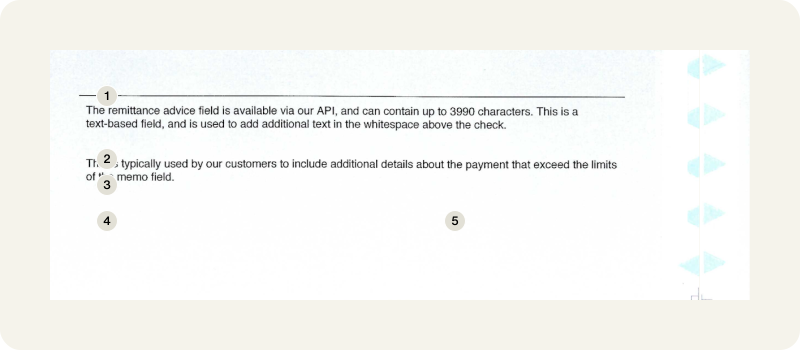
- Business account holder
legalBusinessNameor Personal account holderfamilyNameandgivenName amount: InitiatePhysicalCheckPaymentInputrecipient: InitiatePhysicalCheckPaymentInputmemo: InitiatePhysicalCheckPaymentInput- Uploaded signature