Instant Network Transfers
Overview
Highnote Instant Network Transfer (INT) is a specific payment rail within Highnote's instant payments suite that enables your cardholders to make near real-time domestic money movements to and from eligible external cards, both personal and business.
Instant Network Transfers are implemented through Highnote's Unified Funds Transfer (UFT) framework, using the UnifiedFundsTransfer API object to handle the technical processing of these transactions.
Transfer directions
The INT payment rail moves funds in both directions between a Highnote FinancialAccount and an eligible external debit or prepaid card, operating through Visa Direct and Mastercard Send (a Mastercard Move platform).
| Direction | Transaction | Source | Destination |
|---|---|---|---|
| Push to card | OCT (credit) | Highnote FinancialAccount | Tokenized external card |
| Pull from card | AFT (debit) | Tokenized external card | Highnote FinancialAccount |
The Highnote side of a transfer is always a FinancialAccount, and the external side is always a tokenized card. That FinancialAccount may be one backing a Highnote-issued payment card — you address it by FinancialAccount ID, not by card ID.
Each direction is gated independently by its own capability on the external card, and both directions use the same quote-and-initiate flow described below.
For both directions as a single transferFunds call, see Push to card and Pull from card in the Transfer Funds API.
Capabilities
Before an external card can send or receive funds through an Instant Network Transfer, Highnote verifies that the card is eligible. The result of this verification is expressed as capabilities — two independent assessments of what the card can do:
- INT Destination Capability — whether the card can receive funds (push/OCT).
- INT Source Capability — whether the card can send funds (pull/AFT).
Each capability has a status of ENABLED, REQUIRES_REVIEW, or DISABLED. A card must have ENABLED status on the relevant capability before you can initiate a transfer. The two capabilities are evaluated independently and may have different statuses for the same card.
createReusablePaymentMethodToken (Step 2).How status is determined
When you create a reusable payment method token, Highnote submits a verification request to the card's issuer. The issuer's response, combined with card network data, determines each capability's status through a series of checks.
The destination and source capabilities have different risk profiles, so some checks apply differently.
- Pushing money to a card (destination) requires the card network to support receiving funds, but is more lenient on identity matching.
- Pulling money from a card (source) does not require network-level eligibility, but demands stronger identity verification because it authorizes a debit.
Two gates
- Gate 1 (Issuer approval) If the issuer declines the verification request, both capabilities are immediately
DISABLED. No further checks are performed. - Gate 2 (OCT eligibility, destination only) If the card is not eligible for OCT transactions, the destination capability is
DISABLEDregardless of any other results. Source capability is unaffected by this gate because pulling funds does not use OCT.
If both gates pass, Highnote scores two verification checks independently (ANI and AVS) then combines them. CVV is also part of the verification request but does not affect capabilities status; it only factors into the issuer's approve or decline decision.
Account Name Inquiry (ANI)
ANI compares the cardholder name you submit against the name on file with the issuer. Because pulling funds demands stronger identity confidence, ANI applies stricter thresholds to the source capability:
| ANI Result | Destination (Push/OCT) | Source (Pull/AFT) |
|---|---|---|
| Full name match | ENABLED | ENABLED |
| ANI not performed | ENABLED | ENABLED |
| Partial match (first, last, or middle name only) | ENABLED | REQUIRES_REVIEW |
| No match | REQUIRES_REVIEW | DISABLED |
Both first and last name must fail to match to produce a no-match result. If either first or last name matches, the result is a partial match.
Address Verification System (AVS)
AVS compares the billing address you submit against the address on file with the issuer. AVS scores the same for both capabilities:
| AVS Result | Status |
|---|---|
| Full address match | ENABLED |
| AVS not performed | ENABLED |
| Street address match only | REQUIRES_REVIEW |
| Postal code match only | REQUIRES_REVIEW |
| No address match | REQUIRES_REVIEW |
Combining ANI and AVS
Highnote takes the ANI and AVS statuses for each capability and applies a worst status wins rule.
If either check produces DISABLED, the final status is DISABLED.
If either produces REQUIRES_REVIEW, the final status is REQUIRES_REVIEW.
The status is ENABLED only when both checks are ENABLED.
For example, if ANI produces ENABLED but AVS produces REQUIRES_REVIEW, the final status for that capability is REQUIRES_REVIEW.
Decision flows
The following diagrams show the full decision flow for each capability.
Destination capability (receive funds / push / OCT)
Issuer approved?
├── No ──────────────────────────────── DISABLED
└── Yes
    └── Card OCT-eligible?
        ├── No ──────────────────────── DISABLED
        └── Yes
            ├── ANI score:
            │   ├── Full match ──────── ENABLED
            │   ├── Not performed ───── ENABLED
            │   ├── Partial match ───── ENABLED
            │   └── No match ────────── REQUIRES_REVIEW
            │
            ├── AVS score:
            │   ├── Full match ──────── ENABLED
            │   ├── Not performed ───── ENABLED
            │   └── Partial/no match ── REQUIRES_REVIEW
            │
            └── Final: worst of ANI + AVS wins
Source capability (send funds / pull / AFT)
Issuer approved?
├── No ──────────────────────────────── DISABLED
└── Yes
    ├── ANI score:
    │   ├── Full match ──────────────── ENABLED
    │   ├── Not performed ───────────── ENABLED
    │   ├── Partial match ───────────── REQUIRES_REVIEW
    │   └── No match ────────────────── DISABLED
    │
    ├── AVS score:
    │   ├── Full match ──────────────── ENABLED
    │   ├── Not performed ───────────── ENABLED
    │   └── Partial/no match ────────── REQUIRES_REVIEW
    │
    └── Final: worst of ANI + AVS wins
Decline reasons
The declineReasons field lives on the destination and source capability objects alongside status, not on the $0 verification transaction.
Each capability also carries a declineReasons field that lists reasons why the capability is not enabled, namely, REQUIRES_REVIEW or DISABLED.
- When a capability is
ENABLEDthe list is empty. - When a capability is
DISABLEDorREQUIRES_REVIEW, the list can be empty or name one or more reasons.
The values come from InstantNetworkTransferCapabilityDeclineReason:
| Decline Reason | Meaning |
|---|---|
BIN_REGION_NOT_SUPPORTED | The card's issuing region is not supported for Instant Network Transfers. |
NOT_DEBIT_OR_PREPAID | The card is not a debit or prepaid card. |
NO_MONEY_TRANSFER_CAPABILITY | The card does not support money transfer. |
CASE_DECISIONED_BY_OPS | Highnote Operations decisioned the capability through case management. |
These are card-eligibility and operational checks, and do not line up one-to-one with the two gates:
BIN_REGION_NOT_SUPPORTEDandNOT_DEBIT_OR_PREPAIDare card-eligibility checks the two-gate summary does not call out separately.NO_MONEY_TRANSFER_CAPABILITYis the BIN money-transfer check behind the destination capability's OCT-eligibility gate.CASE_DECISIONED_BY_OPSreflects a manual Highnote Operations decision rather than an automated check.
Issuer declines (Gate 1) are reflected in the status field and its status-change events. An issuer decline or an identity-driven REQUIRES_REVIEW produces no declineReasons value, so fall back to the status and the ANI/AVS codes in those cases.
Simulating capabilities
You can simulate capabilities with the following card data. Currently, only Visa cards support simulation.
| Card Network | PAN | CVV/CVC | Expiration | Name | Address |
|---|---|---|---|---|---|
| Visa | 4000 0000 0000 0010 | 111 | Any future date | John Doe | 1234 Visa St, Visa, CA 12345 |
Query for status changes
Payment instrument capabilities are returned synchronously in the createReusablePaymentMethodToken response, but can take 3-5 minutes to appear in subsequent queries due to synchronization between databases. Subscribe to the associated notification event topics to receive webhooks when a capability status changes.
To detect changes to the capabilities status after initial tokenization (e.g., from REQUIRES_REVIEW → ENABLED), query for the Customer object with the list of reusable payment methods (each will have a list of capabilities and their latest status). You can remove the checkoutToken object from the query.
FindCustomerCapabilities
Query
query FindCustomerCapabilities($customerIdentifier: String!) {
  customer(customerIdentifier: $customerIdentifier) {
    __typename
    ... on Customer {
      customerIdentifier
      cards: wallet(
        first: 10
        filterBy: { paymentMethodType: { equals: PAYMENT_CARD } }
      ) {
        __typename
        ... on PaymentMethodConnection {
          edges {
            node {
              ... on PaymentMethodToken {
                id
                usage
                instrument {
                  __typename
                  ... on PaymentCardInstrument {
                    brand
                    last4
                    expiryYear
                    expiryMonth
                    capabilities {
                      __typename
                      ... on InstantNetworkTransferDestinationPaymentInstrumentCapability {
                        status
                        createdAt
                        updatedAt
                      }
                    }
                    cardHolder {
                      fullName
                      email
                      billingAddress {
                        streetAddress
                        extendedAddress
                        locality
                        region
                        postalCode
                        countryCodeAlpha3
                      }
                    }
                  }
                }
                checkoutToken: token(scope: ECOMMERCE) {
                  __typename
                  ... on ScopedPaymentMethodToken {
                    token
                    scope
                  }
                }
                createdAt
                updatedAt
              }
            }
          }
        }
      }
      referenceNode {
        __typename
        ... on Node {
          id
        }
        ... on USPersonAccountHolder {
          id
          name {
            givenName
            familyName
          }
          email
        }
        ... on USBusinessAccountHolder {
          id
          businessProfile {
            id
            name {
              legalBusinessName
            }
            website
          }
        }
      }
    }
  }
}
Variables
{
  "customerIdentifier": "<YOUR_CUSTOMER_ID>"
}
Result
{
  "data": {
    "customer": {
      "__typename": "Customer",
      "customerIdentifier": "<YOUR_CUSTOMER_ID>",
      "cards": {
        "__typename": "PaymentMethodConnection",
        "edges": [
          {
            "node": {
              "id": "<PAYMENT_METHOD_TOKEN>",
              "usage": "MULTI_USE",
              "instrument": {
                "__typename": "PaymentCardInstrument",
                "brand": "VISA",
                "last4": "0010",
                "expiryYear": "2028",
                "expiryMonth": "12",
                "capabilities": [
                  {
                    "__typename": "InstantNetworkTransferDestinationPaymentInstrumentCapability",
                    "status": "ENABLED",
                    "createdAt": "2026-04-21T12:00:00.000Z",
                    "updatedAt": "2026-04-21T12:00:00.000Z"
                  }
                ],
                "cardHolder": {
                  "fullName": "John Doe",
                  "email": "john.doe@example.com",
                  "billingAddress": {
                    "streetAddress": "1234 Visa St",
                    "extendedAddress": null,
                    "locality": "Visa",
                    "region": "CA",
                    "postalCode": "12345",
                    "countryCodeAlpha3": "USA"
                  }
                }
              },
              "checkoutToken": {
                "__typename": "ScopedPaymentMethodToken",
                "token": "<PAYMENT_METHOD_TOKEN>",
                "scope": "ECOMMERCE"
              },
              "createdAt": "2026-04-21T12:00:00.000Z",
              "updatedAt": "2026-04-21T12:00:00.000Z"
            }
          }
        ]
      },
      "referenceNode": {
        "__typename": "USPersonAccountHolder",
        "id": "<PERSON_ACCOUNT_HOLDER_ID>",
        "name": {
          "givenName": "John",
          "familyName": "Doe"
        },
        "email": "john.doe@example.com"
      }
    }
  }
}
Retrieve verification results
You can query ANI and AVS response codes inline when vaulting a card or on a vaulted card.
The capability status tells you whether a card can send or receive funds; the underlying ANI and AVS results determine the status value.
Both ANI and AVS response codes are available on each capability's $0 verification transaction created when the card was vaulted.
ANI/AVS codes only explain the status once the card clears both verification gates. A capability that is DISABLED from a gate failure (issuer decline or OCT-ineligibility) never reaches ANI/AVS scoring, so its response codes won't explain the status. See How status is determined for the gate logic.
You reach that $0 verification transaction through each capability's verificationPaymentTransaction field, typed as the PaymentTransaction interface.
Its responseCode is defined on that interface, so you can select it directly.
The examples below use an inline fragment ... on PaymentDebitTransaction to pin the PaymentDebitTransaction concrete type the verification transaction resolves to.
| Field | Check | Possible values |
|---|---|---|
fullNameCode, firstNameCode, lastNameCode, middleNameCode | ANI | MATCHED, PARTIALLY_MATCHED, NOT_MATCHED, NOT_PROVIDED, NOT_APPLICABLE |
addressCode, postalCode | AVS | MATCHED, NOT_MATCHED, NOT_VERIFIED, NOT_PROVIDED, SKIPPED, UNKNOWN |
securityCode | CVV | MATCHED, NOT_MATCHED, NOT_VERIFIED, NOT_PROVIDED, SKIPPED, UNKNOWN |
The destination and source capabilities are backed by the same verificationPaymentTransaction, so the ANI and AVS response codes are identical for both directions.
What can differ is the capability status.
Each direction scores the same codes against its own thresholds, so the stricter source (pull/AFT) capability can land on REQUIRES_REVIEW while the destination (push/OCT) capability is ENABLED.
See Combining ANI and AVS for the scoring rules.
ANI/AVS response codes are normalized across card networks. Visa and Mastercard return verification results through different underlying services, but Highnote maps both into the single set of fields above. So you read the same addressCode, postalCode, and name-match codes regardless of which network the card runs on, and never branch on network.
Query inline when vaulting a card
When you make the payment method token reusable in Step 2, request the verification fields on the mutation response to receive the results without a follow-up call.
CreateReusablePaymentMethodTokenWithVerification
Query
mutation CreateReusablePaymentMethodTokenWithVerification(
  $input: CreateReusablePaymentMethodTokenInput!
) {
  createReusablePaymentMethodToken(input: $input) {
    __typename
    ... on PaymentMethodToken {
      instrument {
        __typename
        ... on PaymentCardInstrument {
          brand
          last4
          capabilities {
            __typename
            ... on InstantNetworkTransferDestinationPaymentInstrumentCapability {
              status
              verificationPaymentTransaction {
                id
                ... on PaymentDebitTransaction {
                  responseCode {
                    fullNameCode
                    firstNameCode
                    lastNameCode
                    middleNameCode
                    addressCode
                    postalCode
                    securityCode
                    processorResponseCode
                  }
                }
              }
            }
            ... on InstantNetworkTransferSourcePaymentInstrumentCapability {
              aftStatus: status
              verificationPaymentTransaction {
                id
                ... on PaymentDebitTransaction {
                  responseCode {
                    fullNameCode
                    firstNameCode
                    lastNameCode
                    middleNameCode
                    addressCode
                    postalCode
                    securityCode
                    processorResponseCode
                  }
                }
              }
            }
          }
        }
      }
      checkoutToken: token(scope: ECOMMERCE) {
        ... on ScopedPaymentMethodToken {
          token
        }
      }
    }
  }
}
Variables
{
  "input": {
    "paymentMethodTokenId": "tkpmc_single_use_1",
    "customerIdentifier": "ps_customerIdentifier",
    "idempotencyKey": "idempotencyKey"
  }
}
Result
{
  "data": {
    "createReusablePaymentMethodToken": {
      "__typename": "PaymentMethodToken",
      "instrument": {
        "__typename": "PaymentCardInstrument",
        "brand": "VISA",
        "last4": "0010",
        "capabilities": [
          {
            "__typename": "InstantNetworkTransferDestinationPaymentInstrumentCapability",
            "status": "REQUIRES_REVIEW",
            "verificationPaymentTransaction": {
              "id": "<PAYMENT_TRANSACTION_ID>",
              "responseCode": {
                "fullNameCode": "PARTIALLY_MATCHED",
                "firstNameCode": "MATCHED",
                "lastNameCode": "NOT_MATCHED",
                "middleNameCode": "NOT_PROVIDED",
                "addressCode": "MATCHED",
                "postalCode": "NOT_MATCHED",
                "securityCode": "MATCHED",
                "processorResponseCode": "APPROVED"
              }
            }
          },
          {
            "__typename": "InstantNetworkTransferSourcePaymentInstrumentCapability",
            "aftStatus": "REQUIRES_REVIEW",
            "verificationPaymentTransaction": {
              "id": "<PAYMENT_TRANSACTION_ID>",
              "responseCode": {
                "fullNameCode": "PARTIALLY_MATCHED",
                "firstNameCode": "MATCHED",
                "lastNameCode": "NOT_MATCHED",
                "middleNameCode": "NOT_PROVIDED",
                "addressCode": "MATCHED",
                "postalCode": "NOT_MATCHED",
                "securityCode": "MATCHED",
                "processorResponseCode": "APPROVED"
              }
            }
          }
        ]
      },
      "checkoutToken": {
        "token": "<PAYMENT_METHOD_TOKEN>"
      }
    }
  }
}
Query a vaulted card
Query the customer's wallet at any time to re-read the latest verification codes for each vaulted (or saved) card.
FindCardVerificationResults
Query
query FindCardVerificationResults($customerIdentifier: String!) {
  customer(customerIdentifier: $customerIdentifier) {
    __typename
    ... on Customer {
      customerIdentifier
      cards: wallet(
        first: 10
        filterBy: { paymentMethodType: { equals: PAYMENT_CARD } }
      ) {
        __typename
        ... on PaymentMethodConnection {
          edges {
            node {
              ... on PaymentMethodToken {
                id
                instrument {
                  __typename
                  ... on PaymentCardInstrument {
                    brand
                    last4
                    capabilities {
                      __typename
                      ... on InstantNetworkTransferDestinationPaymentInstrumentCapability {
                        status
                        verificationPaymentTransaction {
                          id
                          ... on PaymentDebitTransaction {
                            responseCode {
                              fullNameCode
                              firstNameCode
                              lastNameCode
                              middleNameCode
                              addressCode
                              postalCode
                              securityCode
                              processorResponseCode
                            }
                          }
                        }
                      }
                      ... on InstantNetworkTransferSourcePaymentInstrumentCapability {
                        aftStatus: status
                        verificationPaymentTransaction {
                          id
                          ... on PaymentDebitTransaction {
                            responseCode {
                              fullNameCode
                              firstNameCode
                              lastNameCode
                              middleNameCode
                              addressCode
                              postalCode
                              securityCode
                              processorResponseCode
                            }
                          }
                        }
                      }
                    }
                  }
                }
              }
            }
          }
        }
      }
    }
  }
}
Variables
{
  "customerIdentifier": "<YOUR_CUSTOMER_ID>"
}
Result
{
  "data": {
    "customer": {
      "__typename": "Customer",
      "customerIdentifier": "<YOUR_CUSTOMER_ID>",
      "cards": {
        "__typename": "PaymentMethodConnection",
        "edges": [
          {
            "node": {
              "id": "<PAYMENT_METHOD_TOKEN>",
              "instrument": {
                "__typename": "PaymentCardInstrument",
                "brand": "VISA",
                "last4": "0010",
                "capabilities": [
                  {
                    "__typename": "InstantNetworkTransferDestinationPaymentInstrumentCapability",
                    "status": "REQUIRES_REVIEW",
                    "verificationPaymentTransaction": {
                      "id": "<PAYMENT_TRANSACTION_ID>",
                      "responseCode": {
                        "fullNameCode": "PARTIALLY_MATCHED",
                        "firstNameCode": "MATCHED",
                        "lastNameCode": "NOT_MATCHED",
                        "middleNameCode": "NOT_PROVIDED",
                        "addressCode": "MATCHED",
                        "postalCode": "NOT_MATCHED",
                        "securityCode": "MATCHED",
                        "processorResponseCode": "APPROVED"
                      }
                    }
                  },
                  {
                    "__typename": "InstantNetworkTransferSourcePaymentInstrumentCapability",
                    "aftStatus": "REQUIRES_REVIEW",
                    "verificationPaymentTransaction": {
                      "id": "<PAYMENT_TRANSACTION_ID>",
                      "responseCode": {
                        "fullNameCode": "PARTIALLY_MATCHED",
                        "firstNameCode": "MATCHED",
                        "lastNameCode": "NOT_MATCHED",
                        "middleNameCode": "NOT_PROVIDED",
                        "addressCode": "MATCHED",
                        "postalCode": "NOT_MATCHED",
                        "securityCode": "MATCHED",
                        "processorResponseCode": "APPROVED"
                      }
                    }
                  }
                ]
              }
            }
          }
        ]
      }
    }
  }
}
Capability status-change events
When a capability transitions, Highnote sends a notification event so your integration can react without polling. The four events that fire on the PaymentMethodToken are:
| Webhook event name | When it fires |
|---|---|
PAYMENT_METHOD_CAPABILITY_STATUS_ENABLED_EVENT | A capability moved to ENABLED (the card can be used in the corresponding direction). |
PAYMENT_METHOD_CAPABILITY_STATUS_DISABLED_EVENT | A capability moved to DISABLED (the card cannot be used in the corresponding direction). |
PAYMENT_METHOD_CAPABILITY_STATUS_REQUIRES_REVIEW_EVENT | A capability moved to REQUIRES_REVIEW (the card requires manual review by Highnote Operations before it can be used). |
PAYMENT_METHOD_CAPABILITY_STATUS_REVIEWED_EVENT | A capability previously in REQUIRES_REVIEW was reviewed. Inspect capability.status for the outcome (ENABLED or DISABLED). |
Highnote sends one notification per capability status change — the destination and source capabilities fire independently. For payload examples and the destination/source webhook-aliasing pattern, see Capabilities events in the Events reference.
How capabilities gate transactions
A transfer cannot be initiated unless the relevant capability on the external card is ENABLED:
- Pulling funds from a card requires the
InstantNetworkTransferSourcePaymentInstrumentCapabilitystatus to beENABLED. - Pushing funds to a card requires the
InstantNetworkTransferDestinationPaymentInstrumentCapabilitystatus to beENABLED.
The two capabilities are independent — the same card may be ENABLED for one direction and REQUIRES_REVIEW or DISABLED for the other. If you attempt to initiate a transfer against a card whose capability is not ENABLED in the relevant direction, the transfer fails before the network sees it.
Null capabilities
A capability field can also come back null. That is not a status and not a determination — it
means no capability record exists yet for that card. It is different from DISABLED, which is an
active decision and always carries a decline reason.
Capability records are only written once a $0 verification completes (see How status is determined). The destination and source capabilities are always evaluated and written together, so don't expect one direction's capability to exist without the other.
The most common way to encounter null is timing, not ineligibility: as noted in Query for
status changes, capabilities are returned synchronously in the
createReusablePaymentMethodToken response but can take 3-5 minutes to appear in later queries.
Query again after that window before drawing any conclusion from a null result.
A transfer against a card with no ENABLED capability is declined before it reaches the network
(see How capabilities gate transactions). If the relevant
capability is null at transfer time, Highnote declines with a processorResponseCode of
INSTANT_NETWORK_PUSH_CAPABILITY_NOT_ENABLED (destination) or
INSTANT_NETWORK_PULL_CAPABILITY_NOT_ENABLED (source) — see Reading a decline
reason.
Treat null the same as any non-ENABLED status: do not start the transfer. Don't cache it as a
permanent negative or mark the card ineligible — a card that previously had capabilities can show
null again after a re-add, since re-adding a card starts a new verification history. Re-query
after the sync window above; if the capability is still null, no verification has completed for
this card yet, so re-tokenize the card or contact Highnote support with the card's
PaymentMethodToken ID (e.g. tkpmc_1, as used in Step 2).
The same rule applies if a capability object's status field itself comes back null rather than
the object being absent — the service returned an unspecified status, and anything that isn't
ENABLED isn't enabled.
Event lifecycle
The lifecycle of every Instant Network Transfer has the following properties:
- There are two phases — (a) a one-time $0 verification (or vaulting), per card, that unlocks capabilities, and (b) the actual transfer itself.
- There are three objects created across the lifecycle — two instances of
PaymentTransactionand oneInstantNetworkTransfer. - During the transfer phase, the INT forks along two tracks with unique timelines — (a) funds become available to the cardholder almost instantly (b) the funds settle with the networks in 1-3 days.
Verification and transfer phases
PHASE 1 — Verification / Vaulting (one-time per card)
─────────────────────────────────────

Highnote sends a $0 verification to the Issuer.
Outcome: capability status (ENABLED / REQUIRES_REVIEW / DISABLED).
ENABLED is the prerequisite for any transfer.

                          │
                          ▼

PHASE 2 — Transfer (two parallel timelines per transfer)
──────────────────────────────────────────────────────────

InstantNetworkTransfer is initiated
           │
           ├──► FUNDS AVAILABILITY timeline   ──►  seconds – 30 min
           │    (Fast Funds SLA)                   Funds visible
           │                                       INT.status = COMPLETED
           │
           └──► FUNDS SETTLEMENT timeline     ──►  T+1 business day
                (network settlement)               Associated PaymentTransaction
                                                   clears and disburses
Transaction and transfer objects
Three objects track the progress of an INT. Two are PaymentTransaction instances with different roles and parents.
- $0 Verification PaymentTransaction — created once when a card is vaulted; see Capabilities.
- InstantNetworkTransfer — created at initiation.
- Associated PaymentTransaction — created during execution.
VAULT TIME (one-time)
─────────────────────

Capability (per-card status)
    │
    │  verificationPaymentTransaction
    ▼
1. $0 Verification PaymentTransaction (one per vaulted card)


TRANSFER TIME (per transfer)
────────────────────────────

2. InstantNetworkTransfer (the transfer order; status PENDING → COMPLETED)
    │
    │  events[].associatedPaymentTransaction
    ▼
3. Associated PaymentTransaction (stays PENDING until T+1 disbursement)
Parallel transfer timelines
The actual transfer forks along two parallel timelines, each with unique milestones:
| INT Timeline | Milestone | How you know it happened |
|---|---|---|
| Funds availability | Recipient cardholder can see and spend the funds (typically instant; see network rules) | InstantNetworkTransfer.status = COMPLETED |
| Funds settlement | Funds disburse from your financial account (1-3 days) | PaymentTransaction.status exits PENDING |
Timeline: funds availability
Funds become available to the recipient cardholder when the recipient Issuer posts them—typically within seconds. The outer bound is set by the network's own rules rather than by a single figure: see Payment network funds availability rules for the Visa and Mastercard Send timings, and for the cases where posting can extend well beyond 30 minutes.
The Issuer post happens off-event as no InstantNetworkTransferEvent fires when the recipient cardholder is credited.
Funds-availability speed is governed by the recipient Issuer's adherence to the payment network specifications—not by Highnote, and not by the INT's own status.
The destination capability is your earliest signal where ENABLED indicates BIN-level money-transfer support and DISABLED often signals the opposite.
By contrast, ON_HOLD_* transfers can take hours and should not be confused with transfers in the PENDING state.
Until an on-hold transfer resolves, your ledger holds on the originating account remain in place and the transfer's final outcome is not yet settled.
See On-hold states.
Payment network funds availability rules
Fast Funds is the Visa Direct rule for Original Credit Transactions (OCTs). On Visa Direct, the recipient Issuer must post funds within the Fast Funds SLA.
A participating Issuer must:
- Support the OCT message (a 0100/TC06 dual-message exchange, or a 0200 single-message system)
- Make funds available within 30 minutes or less of approving the OCT (60 seconds or less for U.S. domestic)
- Submit an updated Customer Information Questionnaire (CIQ) to Visa to enable the Fast Funds indicator on its issuing identifier.
For qualifying transactions, a Fast Funds indicator is carried in TCR3 position 16 for Issuer reconciliation. If the recipient Issuer does not comply with the SLA, Visa permits the Non/Late Posting Process to reclaim funds.
BIN money-transfer check
Highnote's BIN service checks money-transfer support (including Fast Funds) when evaluating the InstantNetworkTransferDestinationPaymentInstrumentCapability.
A capability returned as DISABLED because the BIN does not support money transfers is a strong tell that the recipient Issuer is not Fast Funds-enabled.
For Mastercard Send, the 30-minute funds availability rule runs from the time of authorization approval. It is Mastercard's Fast Posting standard, and it is scoped to debit and prepaid destination accounts. Credit destinations follow a different track: funds show as pending within 30 minutes, but posting is permitted up to two business days after clearing.
Treat 30 minutes as Mastercard's ceiling for typical processing rather than a guarantee for every transfer. A Receiving Institution can invoke an Additional Decision Period of up to six business days, during which the transfer shows as pending rather than posted.
Timeline: funds settlement
Disbursement is when funds actually leave your financial account and the associated PaymentTransaction transitions out of PENDING.
Disbursement typically occurs the next business day after the INT completes.
Next business days are:
- Monday–Thursday → next business day
- Friday, Saturday, Sunday → batched, disburse Monday (three-day batch)
- Immediately before a Monday bank holiday → batched through the holiday, disburse Tuesday (four-day batch)
The associated PaymentTransaction stays in PENDING throughout this window, and transitions only when disbursement completes, even if the status is already COMPLETED.
- As part of this next-day settlement, Highnote emits a system-generated
OriginatedAchTransfernotification for the settled volume on each originating account (purpose: MERCHANT_DISBURSEMENT). - You don't initiate or act on it. See Merchant disbursements.
For the network-side schedule that drives these batches, see Network settlement times.
Ledger movement
As the INT progresses, your financial account ledgers update in two steps:
| INT status | Ledger movement | Effect on your account |
|---|---|---|
PENDING | available_cash → push_payment_payable | Your spendable balance drops; funds are reserved and cannot be committed to another transfer. |
COMPLETED | push_payment_payable → cash | The ledger entry finalizes for the outgoing transfer. |
Your spendable balance reflects the outgoing INT as soon as it enters PENDING — not at disbursement.
Lifecycle events
A transfer fires through the following InstantNetworkTransferEventType values, observable via the events field.
The Milestone column flags events that mark cardholder funds availability and your funds settlement progress.
| Event type | When it fires | Milestone |
|---|---|---|
INITIAL_REQUEST | Transfer requested | Your INT is initiated |
COMPLIANCE_REVIEW | Compliance review event was created | — |
AUTHORIZE_PULL_PAYMENT_FUND | Pull (debit / AFT) authorized | — |
AUTHORIZE_PUSH_PAYMENT_FUND | Push (credit / OCT) authorized | The recipient cardholder's Fast Funds SLA starts |
PULL_PAYMENT | Funds pulled from source card | — |
PUSH_PAYMENT | Funds pushed to destination card | — |
CLEAR_PULL_PAYMENT_FUND | Pull cleared | — |
CLEAR_PUSH_PAYMENT_FUND | Push cleared; INT transitions to COMPLETED | The INT is confirmed and the associated PaymentTransaction enters PENDING |
REVERSE_PULL_PAYMENT_FUND | Pull reversed (failure path) | — |
REVERSE_PUSH_PAYMENT_FUND | Push reversed (failure path) | — |
The InstantNetworkTransferStatus transitions from PENDING to COMPLETED (or FAILED).
A transfer may also pass through an intermediate on-hold state before it resolves.
On FAILED, the event's failureReason field is populated with one of the InstantNetworkTransferFailureReason values, for example:
ANI_VERIFICATION_FAILEDCOMPLIANCE_VERIFICATION_FAILEDBAD_CVV
Transfer status values
The InstantNetworkTransferStatus reports where a transfer is in its lifecycle:
| Status | Meaning |
|---|---|
PENDING | Accepted by Highnote and in flight. |
COMPLETED | Cleared the network; the funds are good and the transfer cannot be reversed through Highnote. |
FAILED | Rejected; any ledger holds on the originating account are reversed. |
ON_HOLD_AWAITING_NETWORK | Reached the network, but the network's approval is not yet known because of a connectivity failure. Highnote reconciles against the network's settlement records to determine the outcome. |
ON_HOLD_AWAITING_RESOLUTION | The network approved the transfer, but it is awaiting internal resolution after a post-approval processing error on Highnote's side. Resolves without cardholder action. |
On-hold states
Most transfers move from PENDING to COMPLETED within seconds.
A small subset instead enters one of two on-hold states when a transfer reaches the network but its outcome cannot yet be confirmed by Highnote.
Both are normal, automatically-resolving states, not system failures, and they differ in what is still unknown:
ON_HOLD_AWAITING_NETWORK— the network's approval itself is unknown, because a connectivity failure prevented Highnote from receiving the network's response. Highnote reconciles against the network's settlement records to determine whether the transfer succeeded or failed.ON_HOLD_AWAITING_RESOLUTION— the network approved the transfer, but a post-approval processing error on Highnote's side is still being resolved internally.
While a transfer is on hold:
- Your ledger hold remains in place. The hold taken at
AUTHORIZE_PUSH_PAYMENT_FUNDon the originating account stays reserved until the transfer resolves. Your spendable balance does not return during the on-hold window. This is thePENDING-row reservation in Ledger movement. The on-hold transfer holds there rather than advancing. - No Subscriber action is required. Highnote resolves the transfer automatically, by reconciling against the network's settlement records (
ON_HOLD_AWAITING_NETWORK), or by completing internal processing (ON_HOLD_AWAITING_RESOLUTION).
COMPLETED or FAILED.The on-hold value is a status of the InstantNetworkTransfer itself, surfaced on the transfer's network-facing events in the event timeline.
When the transfer resolves, the leg's clearing event (CLEAR_*) marks completion, and its reversal event (REVERSE_*) marks an unwound transfer.
Transfer failure reasons
When a transfer's status is FAILED, its failureReason tells you why. Failure reasons fall into three groups (setup and validation, Highnote-originated declines, and issuer declines), and the group tells you what you can do about it. The group also tells you how far the transfer got before it stopped.
failureReason values are on the InstantNetworkTransfer object and INSTANT_NETWORK_TRANSFER_FAILED_EVENT, and come from InstantNetworkTransferFailureReason.Setup and validation failures
Setup and validation failures mean the transfer never reached the receiving issuer — your program configuration or the request stopped it first, so you can usually resolve them yourself.
Examples include:
EXTERNAL_MONEY_MOVEMENT_NOT_SUPPORTED_ON_PRODUCTFUNDING_CARD_NOT_SUPPORTEDINSUFFICIENT_FUNDS(source account)TRANSFER_AMOUNT_EXCEEDING_MAX_PROGRAM_LOAD_LIMITCURRENCY_MISMATCHINVALID_DISBURSEMENT_AMOUNT
Highnote-originated declines
Highnote-originated declines mean Highnote's own risk controls declined the transfer before it was sent to the card network. The receiving issuer never saw the transfer, so the decline is not the issuer's decision and no network response code explains it.
These declines report RISK_DECLINE on both the transfer's failureReason and the associated transaction's processorResponseCode. That value is Highnote's own, not a code relayed from the network. See Reading a decline reason for the fields to query.
Retrying the same transfer right away returns the same result. Contact Highnote to review the decline, and do not present it to your customer as an issuer decline.
Issuer decline failures
Issuer declines mean the transfer reached the receiving cardholder's issuer, and the issuer declined it. These are network response codes relayed back to you, so the outcome is the issuer's decision and you generally cannot change it.
Examples include:
INVALID_MERCHANTDO_NOT_HONOREXPIRED_CARDSUSPENDED_CARDTRANSACTION_NOT_PERMITTED
For the complete list of Instant Network Transfer failure reasons, see InstantNetworkTransferFailureReason.
Simulating issuer declines
Push (OCT) and pull (AFT) transfers are both built as authorization requests, so they reach the same simulator as a card payment on both Visa and Mastercard. The authorization decline table applies here: send one of its amounts and the transfer declines with the response code shown for that network.
Four things to keep in mind:
- Use a simulation card. The simulator resolves the card before it looks up the amount, and an unrecognized PAN declines as an invalid card regardless of amount. For a push, the recipient card must be a simulation PAN; for a pull, the source card must be. Use the PANs published under Simulation card data.
- Card data is checked first. A past-dated expiration, wrong CVV, or wrong address produces its own decline before the amount is ever read.
- The amount is the transfer amount. A test transfer that happens to land on a table value declines whether or not that was intended.
- Response codes differ by network for the same amount. Read the column for the network you're testing in the authorization decline table rather than assuming the two match.
Reading a decline reason
Two fields report a decline, and neither is enough on its own. Read both and act on whichever one names the cause:
| Case | InstantNetworkTransferEvent.failureReason | associatedPaymentTransaction.responseCode.processorResponseCode |
|---|---|---|
| Issuer requires strong customer authentication (SCA) | PUSH_PAYMENT_FAILED (generic) | AUTHENTICATION_REQUIRED |
| Highnote risk decline | RISK_DECLINE | RISK_DECLINE |
In the first case the failure reason is generic and only the response code names the cause. In the second the two agree.
Response codes come from PaymentTransactionResponseCodeProcessorResponseCode. Both fields sit on the transfer's events:
UnifiedFundsTransfer.steps
  └── ... on UnifiedFundsTransferInstantNetworkTransferStep
        └── transfer
              └── ... on InstantNetworkTransfer
                    └── events
                          ├── failureReason
                          └── associatedPaymentTransaction
                                └── responseCode.processorResponseCode
steps returns the UnifiedFundsTransferStep union and transfer returns the UnifiedFundsTransferStepTransfer union, so pin each concrete type with an inline fragment.
associatedPaymentTransaction is typed as the PaymentTransaction interface, and responseCode is defined on that interface, so you can select it directly.
See Query existing Unified Funds Transfer for the query shape.
Invalid merchant failures
INVALID_MERCHANT is a common source of confusion on push payments, because the sender is not a store. It means the receiving cardholder's issuer declined the transfer because the merchant is not authorized for that card. A push carries a merchant category code (MCC), and a common reason is that the issuer restricts that category for the card. The issuer, not Highnote or the sender, makes the decision.
Because the decline is the issuer's, you cannot override it, and retrying the same transfer to the same card generally will not succeed unless the issuer's restriction changes. Offer the recipient an alternative payout method or destination card.
UFT state machine
Every Instant Network Transfer is executed through the Unified Funds Transfer framework. The UFT moves through three transaction-level states. The rail step (RTP or INT) runs internally and is not directly observable through webhooks; OFAC screening happens inside it.
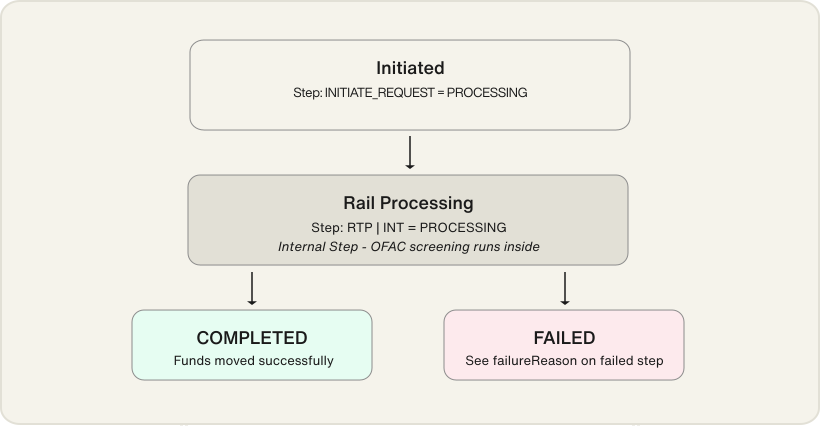
On FAILED, inspect UnifiedFundsTransferFailureReason on the step whose status is FAILED to determine the cause (rail rejection, sanctions screen, account closed, etc.).
When the failed step is the RTP step, see Transfer Failure Reasons for what each value means and what to do about it.
Webhook notifications
For event-driven integrations, Highnote also delivers higher-level UFT and INT lifecycle webhooks:
| Webhook event name | When it fires |
|---|---|
UNIFIED_FUNDS_TRANSFER_INITIATED_EVENT | A Unified Funds Transfer was initiated |
INSTANT_NETWORK_TRANSFER_INITIATED_EVENT | The INT portion of the UFT was initiated |
INSTANT_NETWORK_TRANSFER_COMPLETED_EVENT | The INT portion completed; funds are good and the transfer cannot be reversed through Highnote |
INSTANT_NETWORK_TRANSFER_FAILED_EVENT | The INT portion failed; inspect failureReason on the associated event |
UNIFIED_FUNDS_TRANSFER_COMPLETED_EVENT | The UFT completed end-to-end |
UNIFIED_FUNDS_TRANSFER_FAILED_EVENT | The UFT failed end-to-end |
For payload schemas and full webhook details, see Unified funds transfer and Instant network transfer in the Events reference.
Creating an instant payment
Creating an instant payment with a fee quote requires the following steps:
- Step 1. Create a single-use (3-hour) PaymentMethodToken from customer card data (with the Secure Inputs or Checkout SDK). Return the tokenized payment card to your server.
- Step 2. Associate the PaymentMethodToken with the customer ID (to make it reusable). Your server invokes the API call, then Highnote runs checks and vaults the card.
- Step 3. Get a single-use ScopedPaymentMethodToken by querying the Customer object.
- Step 4. Create a UnifiedFundsTransferQuote for fees (on cards with capabilities
ENABLED). - Step 5. Initiate a UnifiedFundsTransfer. Your server initiates the transfer after creating the quote.
Steps 4 and 5 are the quote flow, which lets you show fees to the customer before committing. To skip them, the Transfer Funds API completes the same transfer in a single transferFunds call. The card still has to be tokenized first either way.
You cannot reverse or refund a completed Instant Network Transfer through Highnote. As soon as an INT completes, the funds are considered “good funds.” The InstantNetworkTransfer object exposes no cancel, reverse, or refund mutation, and its status has no reversed state.
To reverse the money movement of a completed Instant Network Transfer, you must run another follow-on INT. All associated fees are charged to you.
On Visa, the network defines narrow exception-processing paths that sit outside Highnote's API: a Good Faith Adjustment raised through Visa Resolve Online (VROL), and a time-boxed Request for Proof of Posting that can lead to a debit adjustment—the same family as the Non/Late Posting Process described above.
These are issuer-mediated and deadline-bound, they cover specific error scenarios rather than buyer's remorse, and you cannot initiate them through Highnote. Mastercard Send defines no equivalent general reversal path.
Step 1. Generate single-use Payment Method Token
You can use the Highnote Checkout SDK or Secure Inputs SDK to tokenize a customer's card data as a single-use PaymentMethodToken. Integrate either SDK in your application on the page where the customer enters their card and saves their payment method.
Summary of the SDK token flow
- Fetch client token with generatePaymentMethodTokenizationClientToken: Your server gets a client token from Highnote for authentication.
- Initialize SDK: You pass the client token to
renderCheckout()(with other configurations). - Customer presses Submit button: This triggers an
onTokenizeSuccesscallback whereby the SDK tokenizes the card data and returns a PaymentMethodToken representing the customer's card data. - Pass PaymentMethodToken to your server: Your server can securely authenticate with Highnote's API to complete the payment process.
Checkout SDK
Follow the guide on setting up the Checkout SDK. When initializing the SDK, configure the submitButton text to be Submit instead of "Pay":
renderCheckout({
  clientToken,
  additionalFormSections: {
    cardHolderName: true,
    billingAddress: true,
  },
  submitButton: {
    text: "Submit",
  },
});
Secure Inputs SDK
Follow the guide on setting up the Secure Inputs SDK. When tokenizing, additional cardholder data is required for OFAC and AVS compliance checks — namely, fullName and billingAddress.
Step 2. Make Payment Method Token reusable
Payment instrument capabilities are returned synchronously in the createReusablePaymentMethodToken response, but can take 3-5 minutes to appear in subsequent queries due to synchronization between databases. Subscribe to the associated notification event topics to receive webhooks when a capability status changes.
In this step, you associate the single-use PaymentMethodToken from Step 1 with the customer's ID, thereby making it a reusable token. The reusable PaymentMethodToken is only effective if capabilities status returns as ENABLED.
Use the mutation createReusablePaymentMethodToken and set paymentMethodTokenId to the single-use PaymentMethodToken (e.g., "tkpmc_single_use_1"). The response returns a checkoutToken (e.g., "tkpmc_1").
CreateReusablePaymentMethodToken
Query
mutation CreateReusablePaymentMethodToken(
  $input: CreateReusablePaymentMethodTokenInput!
) {
  createReusablePaymentMethodToken(input: $input) {
    __typename
    ... on PaymentMethodToken {
      instrument {
        __typename
        ... on PaymentCardInstrument {
          brand
          last4
          capabilities {
            __typename
            ... on InstantNetworkTransferDestinationPaymentInstrumentCapability {
              createdAt
              status
              updatedAt
            }
          }
        }
      }
      checkoutToken: token(scope: ECOMMERCE) {
        ... on ScopedPaymentMethodToken {
          token
        }
      }
    }
  }
}
Variables
{
  "input": {
    "paymentMethodTokenId": "tkpmc_single_use_1",
    "customerIdentifier": "ps_customerIdentifier",
    "idempotencyKey": "idempotencyKey"
  }
}
Result
{
  "data": {
    "createReusablePaymentMethodToken": {
      "__typename": "PaymentMethodToken",
      "instrument": {
        "__typename": "PaymentCardInstrument",
        "brand": "VISA",
        "last4": "4242",
        "capabilities": [
          {
            "__typename": "InstantNetworkTransferDestinationPaymentInstrumentCapability",
            "createdAt": "2025-07-11T23:28:18.977Z",
            "status": "ENABLED",
            "updatedAt": "2025-07-11T23:28:18.977Z"
          }
        ]
      },
      "checkoutToken": {
        "token": "tkpmc_1"
      }
    }
  }
}
The response includes capability statuses that determine whether the card can send or receive funds. See Capabilities for how these statuses are determined and how to simulate them.
Step 3. Get single-use Scoped Payment Method Token
ENABLED.You can get a unique single-use ScopedPaymentMethodToken by querying the Customer object with the reusable payment method token.
Set token to the reusable PaymentMethodToken (e.g., "tkpmc_1").
{
  "checkoutToken": {
    "__typename": "ScopedPaymentMethodToken",
    "token": "tkpmc_1",
    "scope": "ECOMMERCE"
  }
}
Step 4. Create a Unified Funds Transfer Quote
In this flow, you must first request a quote before you can initiate a Unified Funds Transfer. The quote is what gives you the fees to present to the user. All fees come out of your financial account.
To create a quote for fees on a push to card (OCT), set the following inputs:
- Set
source.idas the ID of a Highnote FinancialAccount owned by user. - Set
source.amountas the amount to send. - Set
destination.idas the ScopedPaymentMethodToken.
To pull from a card (AFT), swap the two sides: set source.id to the ScopedPaymentMethodToken and destination.id to the Highnote FinancialAccount. The amount stays on source.amount, and the rest of this flow is unchanged. See Transfer directions.
Each UnifiedFundsTransferQuote has an expiresAt value indicating how long the quote is valid.
Reference that timestamp to ensure the quote is still valid when offering it to the user.
You are now ready to use the following mutation to create a UnifiedFundsTransferQuote in a quote state. You may get back multiple quotes depending on the fee and time estimate.
CreateTransferQuote
Query
mutation CreateTransferQuote($input: CreateUnifiedFundsTransferQuoteInput!) {
  createUnifiedFundsTransferQuote(input: $input) {
    __typename
    ... on CreateUnifiedFundsTransferQuoteResult {
      quotes {
        id
        source {
          node {
            ... on Node {
              id
            }
            ... on FinancialAccount {
              id
            }
          }
          amount {
            currencyCode
            value
            decimalPlaces
          }
        }
        destination {
          node {
            ... on Node {
              id
            }
            ... on PaymentMethodToken {
              id
            }
          }
          amount {
            currencyCode
            value
            decimalPlaces
          }
        }
        transferDetail {
          timeEstimate
          feeTotal {
            value
            decimalPlaces
          }
        }
        idempotencyKey
        expiresAt
      }
    }
  }
}
Variables
{
  "input": {
    "source": {
      "id": "ac_1",
      "amount": {
        "currencyCode": "USD",
        "value": "15000"
      }
    },
    "destination": {
      "id": "tkpmc_1"
    },
    "idempotencyKey": "idempotencyKey"
  }
}
Result
{
  "data": {
    "createUnifiedFundsTransferQuote": {
      "__typename": "CreateUnifiedFundsTransferQuoteResult",
      "quotes": [
        {
          "quoteIdentifier": "woquo_1",
          "source": {
            "node": {
              "id": "ac_1"
            },
            "amount": {
              "currencyCode": "USD",
              "value": 15000,
              "decimalPlaces": 2
            }
          },
          "destination": {
            "node": {
              "id": "tkpmc_1"
            },
            "amount": {
              "currencyCode": "USD",
              "value": 14737,
              "decimalPlaces": 2
            }
          },
          "transferDetails": {
            "timeEstimate": "3 seconds",
            "feeTotal": {
              "value": 263,
              "decimalPlaces": 2
            }
          },
          "idempotencyKey": "idempotencyKey",
          "expiresAt": "2022-01-01T00:00:00Z"
        },
        {
          "quoteIdentifier": "woquo_2",
          "source": {
            "node": {
              "id": "ac_1"
            },
            "amount": {
              "currencyCode": "USD",
              "value": 15000,
              "decimalPlaces": 2
            }
          },
          "destination": {
            "node": {
              "id": "tkpmc_1"
            },
            "amount": {
              "currencyCode": "USD",
              "value": 15000,
              "decimalPlaces": 2
            }
          },
          "transferDetails": {
            "timeEstimate": "2-5 days",
            "feeTotal": {
              "value": 0,
              "decimalPlaces": 2
            }
          },
          "idempotencyKey": "idempotencyKey",
          "expiresAt": "2022-01-01T00:00:00Z"
        }
      ]
    }
  }
}
Step 5. Initiate a Unified Funds Transfer
Once the user has chosen a quote, you can initiate the transfer. Use a UnifiedFundsTransferQuote.quoteIdentifier that has not expired to start the transfer.
InitiateUnifiedFundsTransfer
Query
mutation InitiateUnifiedFundsTransfer(
  $input: InitiateUnifiedFundsTransferInput!
) {
  initiateUnifiedFundsTransfer(input: $input) {
    __typename
    ... on UnifiedFundsTransfer {
      id
      source {
        node {
          ... on Node {
            id
          }
          ... on FinancialAccount {
            id
          }
        }
        amount {
          currencyCode
          value
          decimalPlaces
        }
      }
      destination {
        node {
          ... on Node {
            id
          }
          ... on PaymentMethodToken {
            id
          }
        }
        amount {
          currencyCode
          value
          decimalPlaces
        }
      }
      externalIdentifier
      idempotencyKey
      steps {
        ... on UnifiedFundsTransferInitiateRequestStep {
          status
          createdAt
        }
        ... on UnifiedFundsTransferInstantNetworkTransferStep {
          status
          createdAt
          transfer {
            ... on InstantNetworkTransfer {
              id
              createdAt
              updatedAt
              status
              failureReason
            }
          }
        }
      }
    }
  }
}
Variables
{
  "input": {
    "id": "woquo_1"
  }
}
Result
{
  "data": {
    "initiateUnifiedFundsTransfer": {
      "__typename": "UnifiedFundsTransfer",
      "id": "wouft_1",
      "source": {
        "node": {
          "id": "ac_1"
        }
      },
      "destination": {
        "node": {
          "id": "tkpmc_1"
        }
      },
      "externalIdentifier": "externalIdentifier",
      "idempotencyKey": "idempotencyKey",
      "steps": [
        {
          "status": "COMPLETED",
          "createdAt": "2025-07-11T19:22:37.510Z"
        },
        {
          "status": "PROCESSING",
          "createdAt": "2025-07-11T19:22:37.510Z",
          "transfer": {
            "id": "eftip_1",
            "createdAt": "2025-07-11T19:22:37.223Z",
            "updatedAt": "2025-07-11T19:22:37.229Z",
            "status": "PENDING",
            "failureReason": null
          }
        }
      ]
    }
  }
}
Query existing Unified Funds Transfer
To look up an existing Unified Funds Transfer, use the following query:
GetInstantNetworkTransfer
Query
query GetInstantNetworkTransfer($id: ID!) {
  node(id: $id) {
    __typename
    id
    ... on UnifiedFundsTransfer {
      status
      steps {
        __typename
        ... on UnifiedFundsTransferInstantNetworkTransferStep {
          __typename
          transfer {
            ... on InstantNetworkTransfer {
              createdAt
              destination {
                node {
                  __typename
                  ... on Node {
                    id
                  }
                  ... on PaymentMethodToken {
                    id
                  }
                }
              }
              status
              events {
                __typename
                type
              }
              externalIdentifier
              failureReason
              id
              idempotencyKey
              updatedAt
            }
          }
        }
      }
    }
  }
}
Variables
{
  "id": "wouft_1"
}
Result
{
  "data": {
    "node": {
      "__typename": "UnifiedFundsTransfer",
      "id": "wouft_1",
      "status": "PROCESSING",
      "steps": [
        {
          "__typename": "UnifiedFundsTransferInitiateRequestStep"
        },
        {
          "__typename": "UnifiedFundsTransferInstantNetworkTransferStep",
          "transfer": {
            "createdAt": "2025-07-10T22:30:59.749Z",
            "destination": {
              "node": {
                "__typename": "PaymentMethodToken",
                "id": "pm_1"
              }
            },
            "status": "COMPLETED",
            "events": [
              {
                "__typename": "InstantNetworkTransferEvent",
                "type": "PUSH_PAYMENT"
              },
              {
                "__typename": "InstantNetworkTransferEvent",
                "type": "CLEAR_PUSH_PAYMENT_FUND"
              },
              {
                "__typename": "InstantNetworkTransferEvent",
                "type": "AUTHORIZED_PUSH_PAYMENT_FUND"
              }
            ],
            "externalIdentifier": "",
            "failureReason": null,
            "id": "eftip_1",
            "idempotencyKey": "idempotencyKey",
            "updatedAt": "2025-07-10T22:31:09.876Z"
          }
        }
      ]
    }
  }
}