Request Documents for Application Review
Overview
Document requests are usually made as part of a pre-defined application review workflow. Applications are often flagged for review because additional account holder verification information is needed. This review process confirms a person or business's identity and ensures compliance with Know-Your-Customer (KYC) or Know-Your-Business (KYB) regulations.
Sometimes, however, additional documents are requested outside of this flow, for example, when a business cannot complete its SOS filings in time, or when the application is under manual review. For these "generic" document requests, see Request for additional documents at the bottom of this page.
Prerequisites
- An account holder card product application with an
IN_REVIEWstatus - Access to the Highnote API, API Explorer, or dashboard
Application review process
The application review process typically takes place as follows:
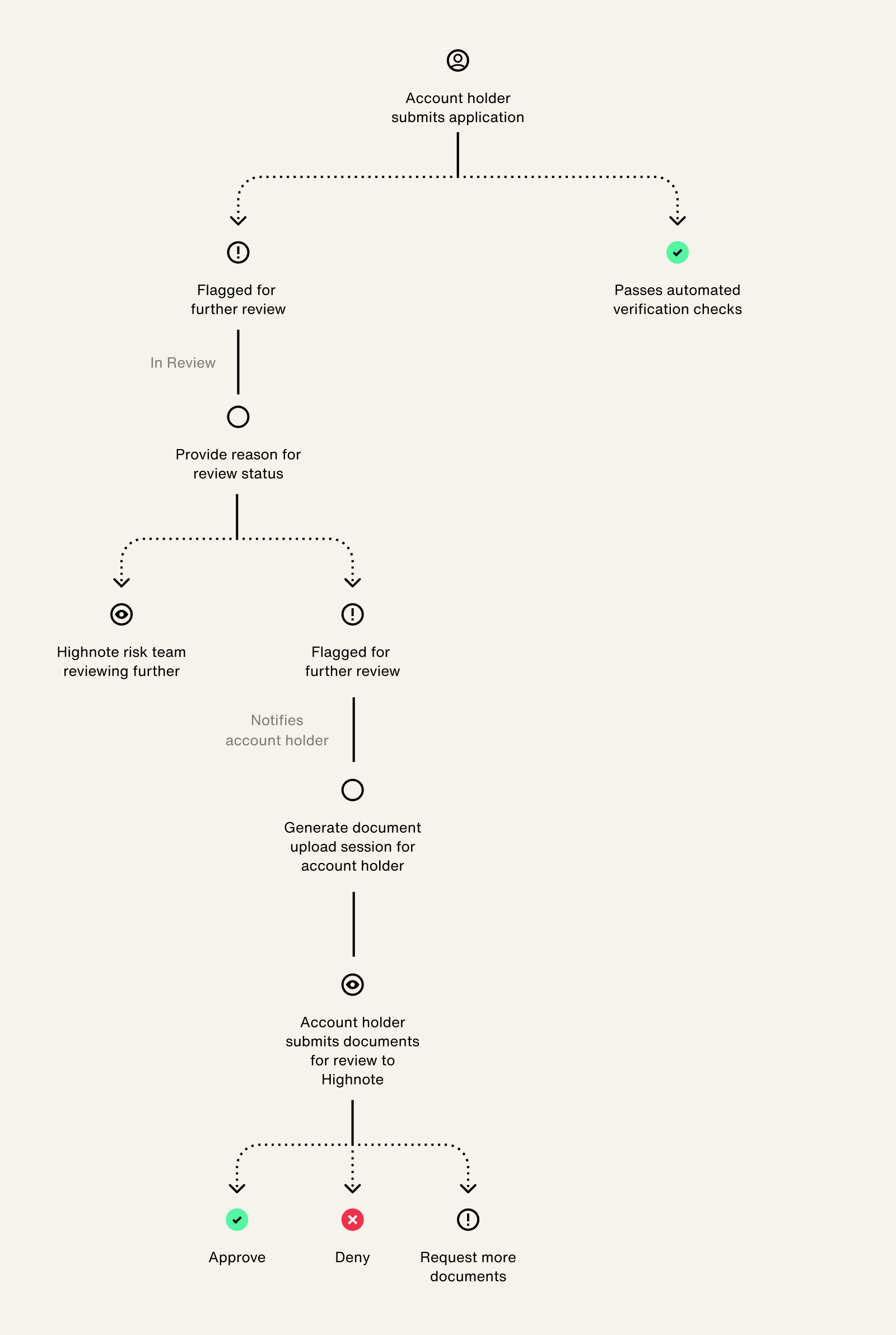
- Application is flagged for review and inherits an
IN_REVIEWstatus. - Application is either manually reviewed by Highnote or indicates that additional documentation is needed from the account holder.
- Optional - Send a notification to account holders of the application review status and direct them to the document upload flow using the application status event notification.
- Generate a document upload session so the account holder can upload their documents.
- Highnote reviews account holder documents and makes one of the following application decisions:
- Approve the application: Documents were verified and the account holder's identity was confirmed.
- Deny the application: Documents were not provided or appear to be fraudulent.
- Ask for more documents: Additional documents are needed to confirm the identity of the account holder.
Account holder documentation
Depending on the type of account holder applying for a card product, documentation may be required from more than one applicant. For example, for business account holders, documents may be required for the primary authorized person and each beneficial owner.
When an application enters IN_REVIEW status, the API returns the reason why it was flagged for review in verificationResultCodes.
When there are multiple response codes, the account holder may need to provide multiple documents.
In the response payload for the startDocumentUploadSession mutation, the following fields can be used to resolve a flagged application:
- The
recommendedDocumentTypesfield provides the document(s) that are most likely to resolve the review status with the fewest documents needed. - The
verificationResultCodeDocumentContextto see all document types that may resolve each result code.
US business account holder documentation
Business entity documentation is only relevant to USBusinessAccountHolders and includes documentation related to the business.
In cases where a business account holder is a sole proprietor, personal information can be used in place of business-related documentation. For example, a sole proprietor may not have an EIN but can have one of the following documents:
- Taxpayer identification
- Social Security card
- Owner’s full tax return with Schedule C included
Collect documents for identity verification
The application will be DENIED if the documents appear forged, outdated, or invalid. Also, documents cannot be expired and must be dated within 60 days.
After the application is IN_REVIEW status (and verification documents are required), you can collect documents with the Document Upload SDK; or you can use the Highnote GraphQL API to generate URLs for each required document.
One or more documents may be required based on the review response and the document type they provide.
Document upload lifecycle
Using the API
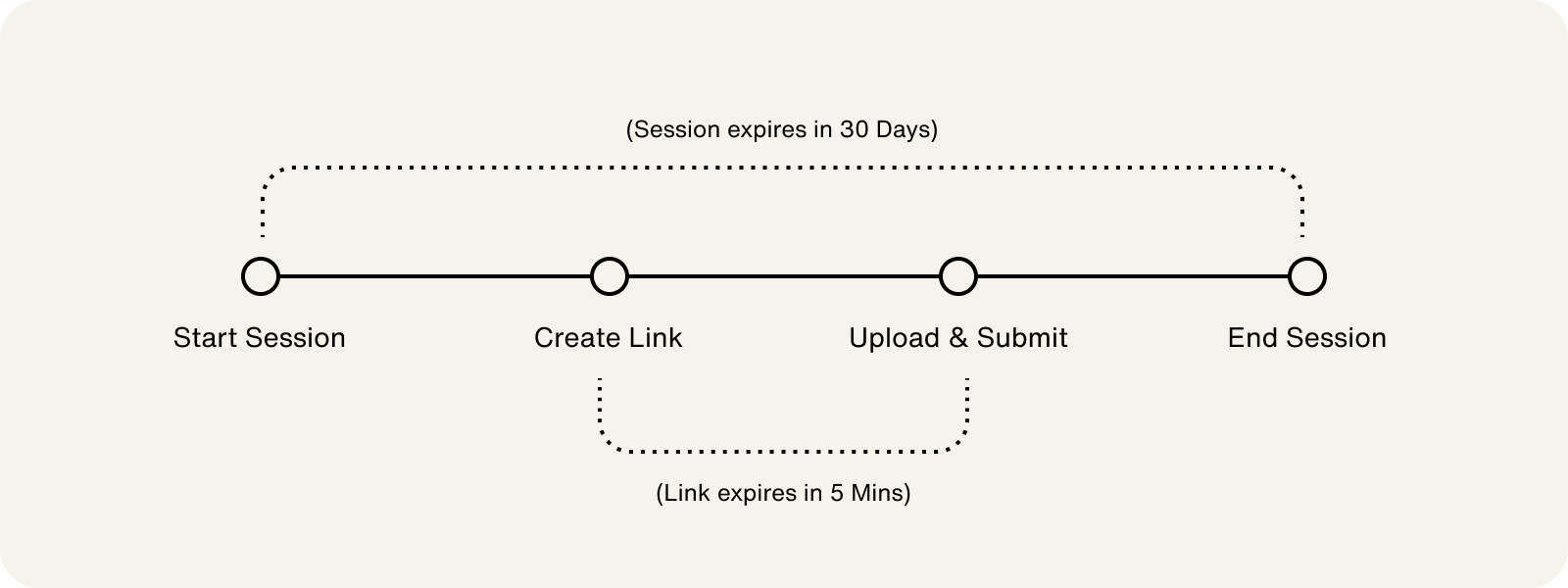
If you use the Highnote API, the document upload process consists of the following steps:
- Optional - Generate a client token
- Start document upload session
- Create document upload link
- End the document upload session
File formats sizes sizes
Supported file formats are PDF, PNG, JPG. We recommend a file size of 10MB or less.
Start session
For compliance reasons, if you are not using a server or do not have access to one, you must generate a client token to make requests directly from your client. See Client Tokens.
Start a document upload session by generating a URL to send the account holder that allows them to upload their documents. We recommend using the application status event notification to send a notification to account holders to alert them of the application review status and provide a URL to your document upload session.
Note the following when starting a document upload session:
- Document upload sessions expire 30 days from creation. If the account holder does not provide the required documentation within 30 days, the application will be
DENIED. - A session will indicate any requirements that your system may need to enforce when uploading the file.
Use the following mutation to start a document upload session:
StartDocumentUploadSession
Query
mutation startDocumentUploadSession($input: StartDocumentUploadSessionInput!) {
  startDocumentUploadSession(input: $input) {
    __typename
    ... on Node {
      id
    }
    ... on USAccountHolderApplicationDocumentUploadSession {
      id
      status
      documents {
        id
        status
        uploadUrl
      }
      recommendedDocumentTypes
      documentContext {
        ... on AccountHolderApplicationDocumentUploadSessionContext {
          documentVerificationResultCodeContext {
            entries {
              document
              verificationResultCodes
            }
          }
          verificationResultCodeDocumentContext {
            entries {
              verificationResultCode
              documents
            }
          }
        }
      }
    }
  }
}
Variables
{
  "input": {
    "documentUploadSessionId": "<DOCUMENT_UPLOAD_SESSION_ID>"
  }
}
Result
{
  "data": {
    "node": {
      "__typename": "USAccountHolderApplicationDocumentUploadSession",
      "id": "<DOCUMENT_UPLOAD_SESSION_ID>",
      "status": "INITIATED",
      "documents": null,
      "recommendedDocumentTypes": [
        "DRIVERS_LICENSE"
      ],
      "documentContext": {
        "documentVerificationResultCodeContext": {
          "entries": [
            {
              "document": "DRIVERS_LICENSE",
              "verificationResultCodes": [
                "NAME_MISMATCH"
              ]
            },
            {
              "document": "PAY_STUB",
              "verificationResultCodes": [
                "NAME_MISMATCH"
              ]
            },
            {
              "document": "PASSPORT",
              "verificationResultCodes": [
                "NAME_MISMATCH"
              ]
            }
          ]
        },
        "verificationResultCodeDocumentContext": {
          "entries": [
            {
              "verificationResultCode": "NAME_MISMATCH",
              "documents": [
                "DRIVERS_LICENSE",
                "PAY_STUB",
                "PASSPORT"
              ]
            }
          ]
        }
      }
    }
  },
  "extensions": {
    "requestId": "<REQUEST_ID>",
    "rateLimit": {
      "cost": 7,
      "limit": 1000,
      "remaining": 993
    }
  }
}
Create link
Document upload links expire 5 minutes after creation.
Once a document upload session has started, you must create a secure upload link for each document. For example, if the applicant must provide a driver’s license and utility bill, each document would need its own unique upload link.
Note the following when creating upload links:
- Upload links expire 5 minutes after being created. If expired, an error message is returned, and you must request a new link.
- Each upload link represents a single upload file.
- When creating upload links, the document upload session status transitions to
PENDING. - To stream the document upload, use the
uploadURLfield in the mutation's response.
Use the following mutation to create a document upload link. Use the DOCUMENT_UPLOAD_SESSION_ID from the startDocumentUploadSession response for this mutation's variable field:
CreateDocumentUploadLink
Query
mutation createDocumentUploadLink($input: CreateDocumentUploadLinkInput!) {
  createDocumentUploadLink(input: $input) {
    __typename
    ... on Node {
      id
    }
    ... on DocumentUploadLink {
      id
      documentUploadSession {
        id
        status
      }
      documentType
      documentCategoryType
      status
      uploadUrl
    }
  }
}
Variables
{
  "input": {
    "documentUploadSessionId": "<DOCUMENT_UPLOAD_SESSION_ID>",
    "documentType": "PASSPORT"
  }
}
Result
{
  "id": "<DOCUMENT_UPLOAD_LINK_ID>",
  "status": "PENDING",
  "documentUploadSession": {
    "id": "<DOCUMENT_UPLOAD_SESSION_ID>",
    "status": "IN_PROGRESS"
  },
  "documentType": "PASSPORT",
  "documentCategoryType": "PRIMARY_DOCUMENT_TYPE",
  "uploadUrl": "https://storage.googleapis.upload-to-bucket"
}
End session
After an account holder has confirmed they have uploaded all required documents, you can end the document upload session.
Check that every upload requirement is satisfied before ending a session. Specifically:
- Query the session's
uploadRequirements. EachUploadRequirementcarries aconstraintslist. - For each requirement, confirm that every constraint's
DocumentUploadRequirementConstraint.numberOfDocumentsis0— meaning no further documents are required.
Note the following when ending a document upload session:
- When ending a session, the session status transitions to
SUBMITTED. - Once the session is
SUBMITTED, no other actions can be taken on it. If more documentation is required, a new session must be started to upload the additional documents. - The Highnote team will review the account holder's documents and decide on the application status.
Use the following mutation to end a document upload session:
EndDocumentUploadSession
Query
mutation endDocumentUploadSession($input: EndDocumentUploadSessionInput!) {
  endDocumentUploadSession(input: $input) {
    __typename
    ... on Node {
      id
    }
    ... on USAccountHolderApplicationDocumentUploadSession {
      id
      status
      documents {
        ... on DocumentUploadLink {
          id
          status
          documentType
          documentCategoryType
        }
      }
    }
  }
}
Variables
{
  "input": {
    "documentUploadSessionId": "<DOCUMENT_UPLOAD_SESSION_ID>"
  }
}
Result
{
  "id": "<DOCUMENT_UPLOAD_SESSION_ID>",
  "status": "SUBMITTED",
  "documents": [
    {
      "id": "<DOCUMENT_UPLOAD_LINK_ID>",
      "status": "UPLOADED",
      "documentType": "PASSPORT",
      "documentCategoryType": "PRIMARY_DOCUMENT_TYPE"
    }
  ]
}
Monitor application review status
To protect account holder privacy, Highnote does not return a public link for accessing document contents.
You can monitor the status of account holder documents while the Highnote team reviews them by querying for the status using the Highnote API or the dashboard. For a full list of application status codes, see the AccountHolderApplicationStatusCode enum.
Note the following about monitoring application review statuses:
- Each document has its own individual status
- Displaying the review status to the account holder is optional
Use the following query to fetch the review status of an account holder application:
findApplicationStatusAndRequiredDocumentsToUpload
Query
query findApplicationStatusAndRequiredDocumentsToUpload($id: ID!) {
  node(id: $id) {
    __typename
    ... on AccountHolderCardProductApplication {
      id
      applicationState {
        status
      }
      accountHolderSnapshot {
        ... on USPersonAccountHolderSnapshot {
          __typename
          currentVerification {
            status
            requiredDocuments {
              documentUploadSession {
                ... on USAccountHolderApplicationDocumentUploadSession {
                  id
                  status
                }
              }
              status
              uploadedDocuments {
                ... on AccountHolderApplicationDocument {
                  status
                  type
                  revisions {
                    status
                    type
                  }
                }
              }
            }
          }
        }
      }
    }
  }
}
Variables
{
  "id": "<APPLICATION_ID>"
}
Result
{
  "data": {
    "node": {
      "__typename": "AccountHolderCardProductApplication",
      "id": "<APPLICATION_ID>",
      "applicationState": {
        "status": "IN_REVIEW"
      },
      "currentVerification": {
        "status": "PENDING",
        "reason": "DOCUMENT_UPLOAD_REQUIRED",
        "requiredDocuments": [
          {
            "documentUploadSession": {
              "id": "<DOCUMENT_UPLOAD_SESSION_ID>",
              "status": "CREATED"
            },
            "status": "CREATED",
            "uploadedDocuments": []
          }
        ]
      }
    }
  },
  "extensions": {
    "requestId": "<REQUEST_ID>"
  }
}
Update document upload status
Once you've closed the document upload session, you can simulate the review status of each document by assigning a new status of APPROVED or DENIED. Use the following mutation to simulate the review status for each document uploaded in the upload session:
SimulateApplicationDocumentReview
Query
mutation simulateApplicationDocumentReview(
  $input: SimulateApplicationDocumentReviewInput!
) {
  simulateApplicationDocumentReview(input: $input) {
    __typename
    ... on AccountHolderApplicationDocument {
      createdAt
      status
      type
      updatedAt
      fileReviewReasons
      revisions {
        createdAt
        status
        type
        updatedAt
        fileReviewReasons
      }
    }
    ... on UserError {
      __typename
      errors {
        code
        errorPath
        description
      }
    }
    ... on AccessDeniedError {
      __typename
      message
    }
  }
}
Variables
{
  "input": {
    "applicationId": "<APPLICATION_ID>",
    "documentUploadSessionId": "<DOCUMENT_UPLOAD_SESSION_ID>",
    "documentUploadLinkId": "<DOCUMENT_UPLOAD_LINK_ID>",
    "newReviewStatus": "APPROVED",
    "fileReviewReasons": [
      "ILLEGIBLE_DOCUMENT",
      "PARTIAL_DOCUMENT"
    ]
  }
}
Result
{
  "data": {
    "simulateApplicationDocumentReview": {
      "__typename": "AccountHolderApplicationDocument",
      "createdAt": "2022-10-11T19:47:00.048Z",
      "status": "APPROVED",
      "type": "PASSPORT",
      "updatedAt": "2022-10-11T22:02:57.136Z",
      "fileReviewReasons": [
        "ILLEGIBLE_DOCUMENT",
        "PARTIAL_DOCUMENT"
      ],
      "revisions": [
        {
          "createdAt": "2022-10-11T19:47:00.048Z",
          "status": null,
          "type": "PASSPORT",
          "updatedAt": "2022-10-11T19:47:00.177Z",
          "fileReviewReasons": null
        }
      ]
    }
  },
  "extensions": {
    "requestId": "<REQUEST_ID>"
  }
}
Simulate application review
Highnote's application review simulation allows you to test the following:
- Application statuses
- Your application review workflow
- Document uploads
For more information, see Simulate Application Review.
Request for additional documents
Highnote may also request documents outside of the application review process, such as compliance reviews or manual investigations. These requests are event-driven and independent of the application lifecycle. For details, see Request Documents On-Demand.